
Students
Depending on your computer's operating system (Windows 10 or Windows 11), follow the steps below to find an application, if it is not already on your home screen.
Windows 10 | Windows 11 |
Image 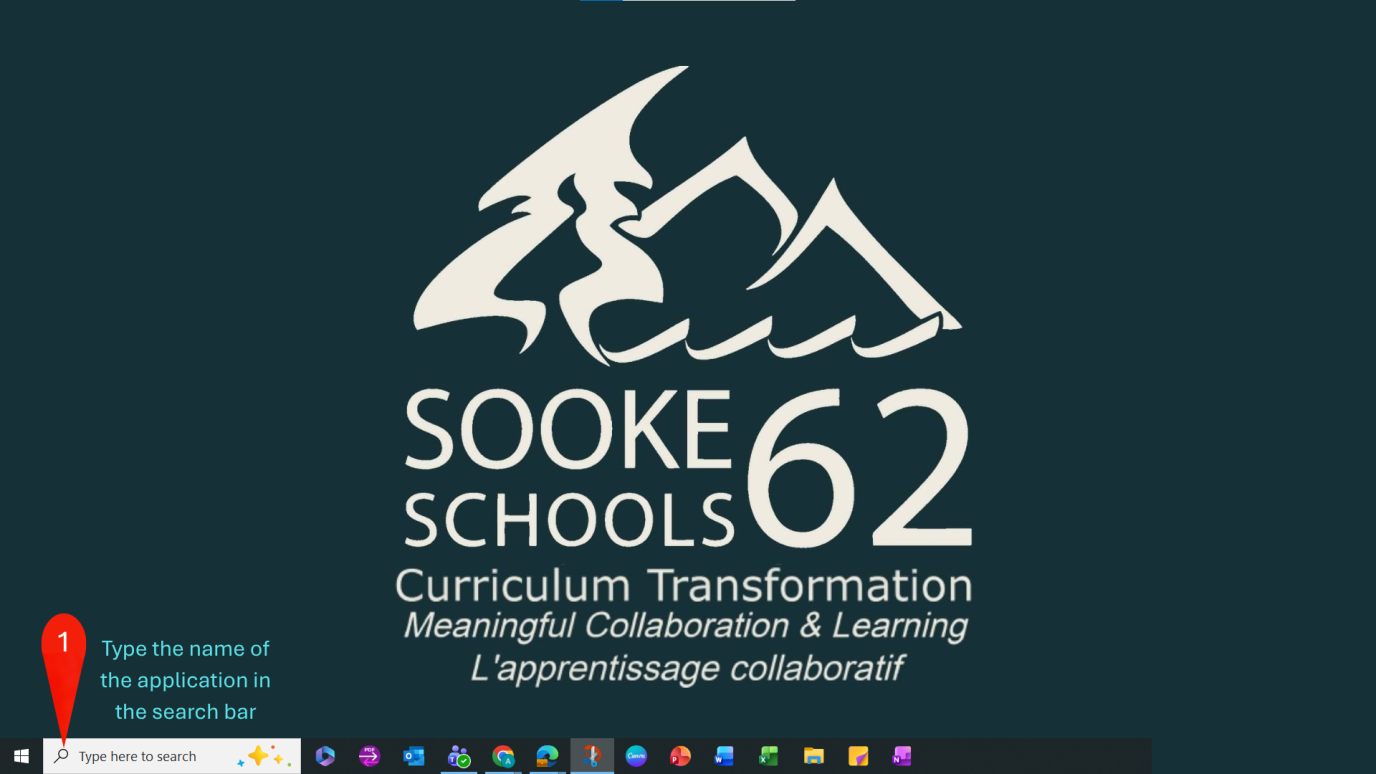 Step 1. Type the name of the application in the search bar | Image 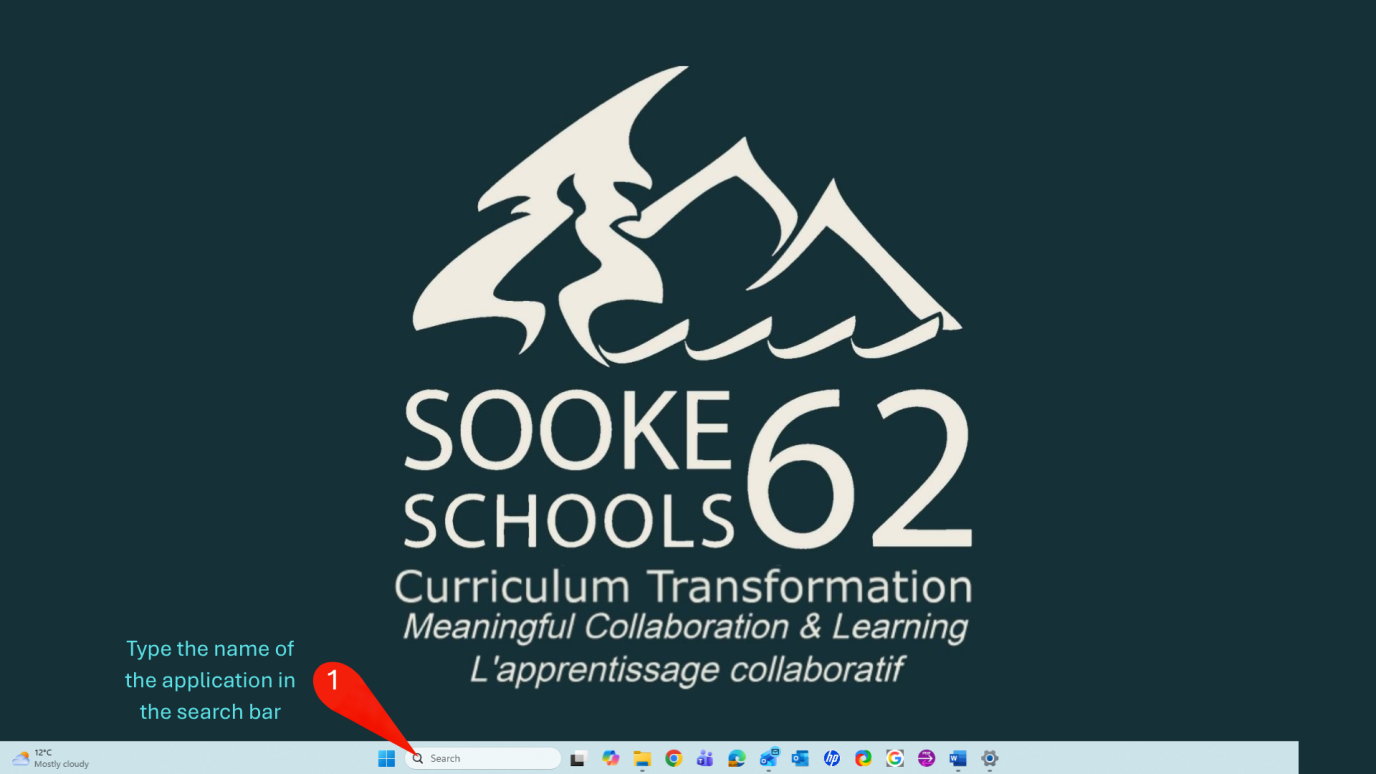 Step 1. Type the name of the application in the search bar |
Image 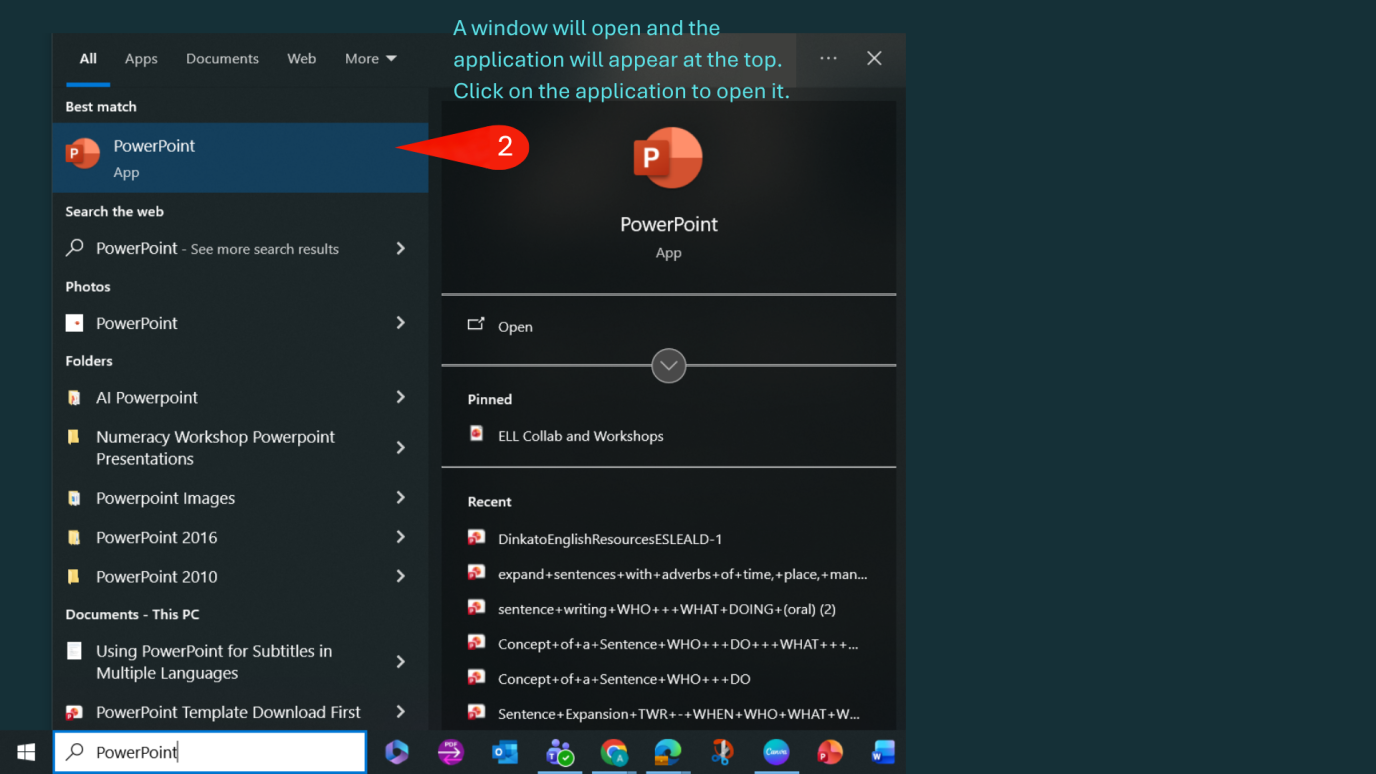 Step 2. Click on the application to open it | Image 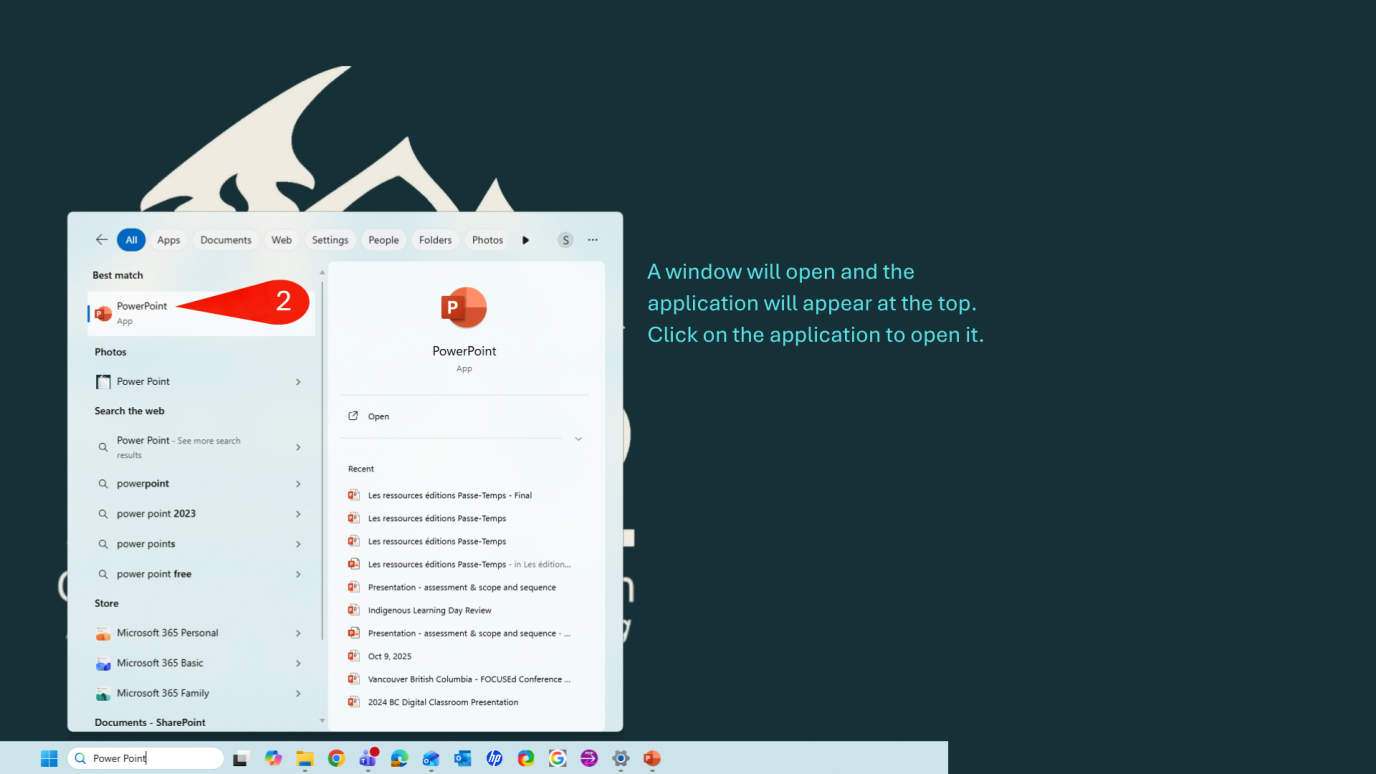 Step 2. Click on the application to open it |
Educators
Depending on your computer's operating system (Windows 10 or Windows 11), follow the steps below to find an application, if it is not already on your home screen.
Windows 10 | Windows 11 |
Image Step 1. Type the name of the application in the search bar | Image Step 1. Type the name of the application in the search bar |
Image Step 2. Click on the application to open it | Image Step 2. Click on the application to open it |
If the application you are looking for is not already installed, follow the steps below: | |
Image 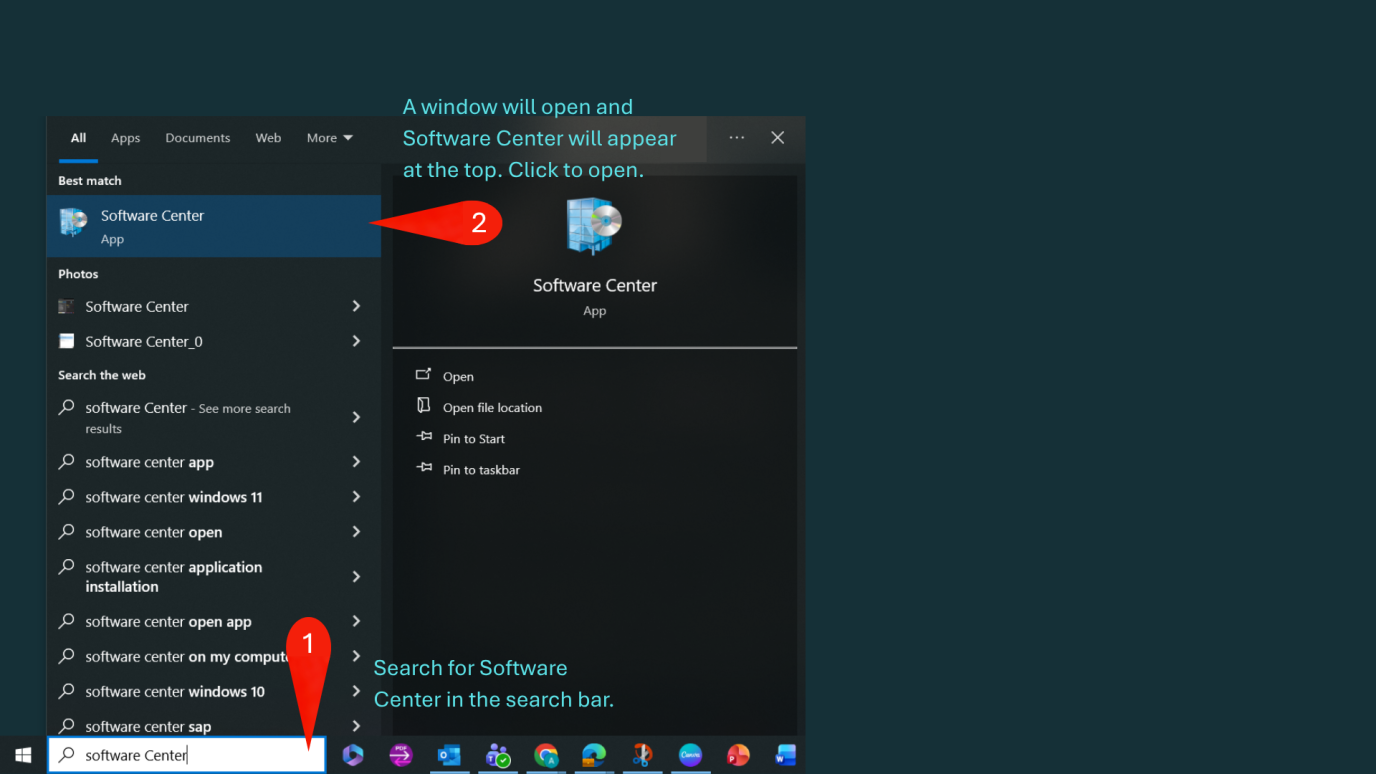 Step 1. Type Software Center into the search bar Step 2. Click on Software Center to open | Image 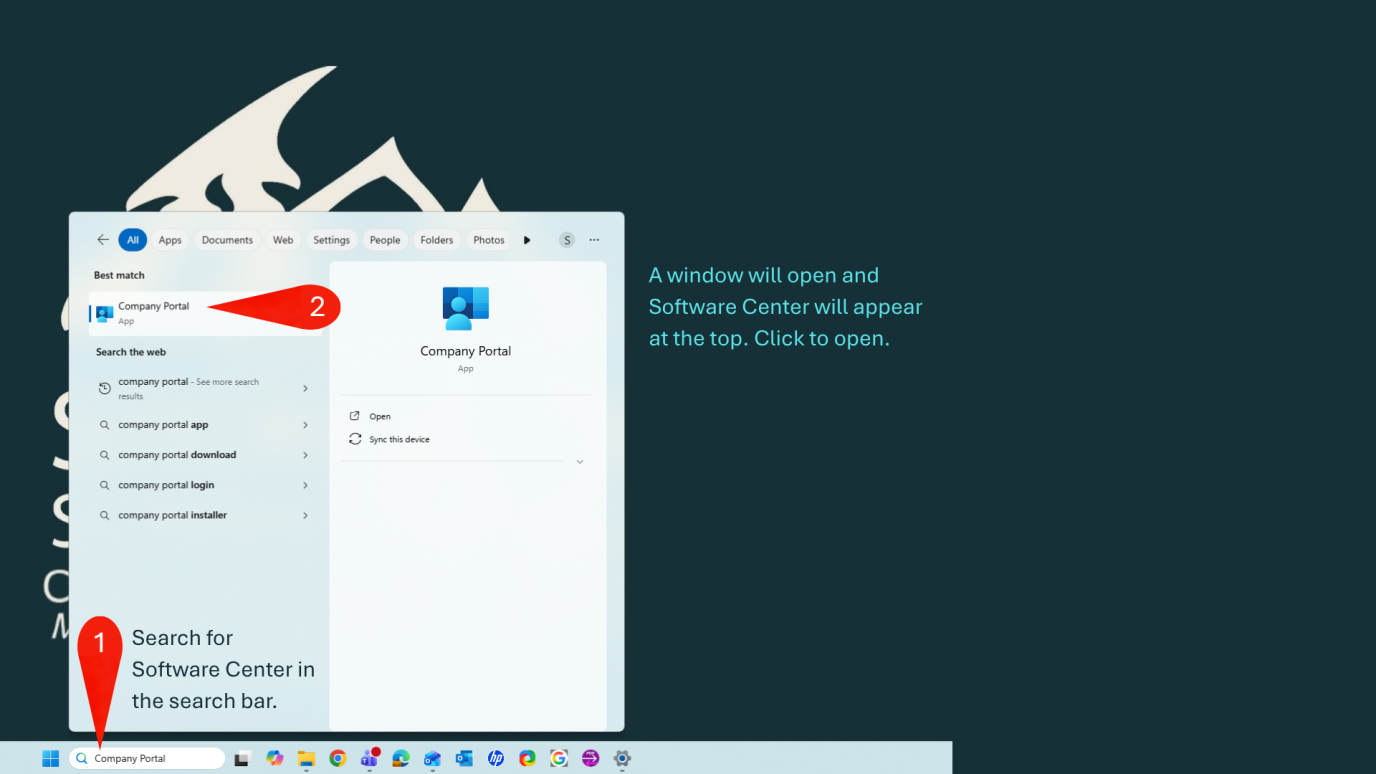 Step 1. Type Company Portal into the search bar Step 2. Click on Company Portal to open |
Image 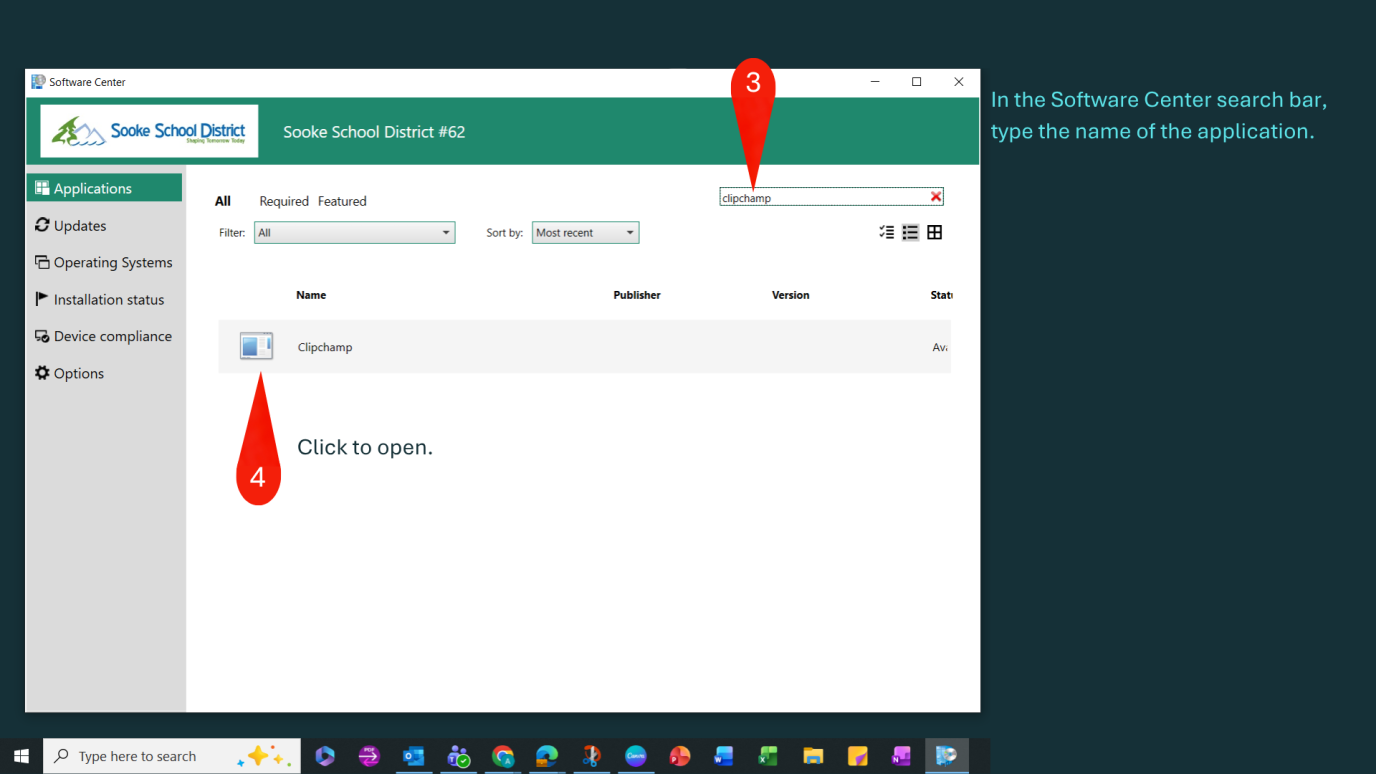 Step 3. Type the application name into the search bar Step 4. Click to open | Image 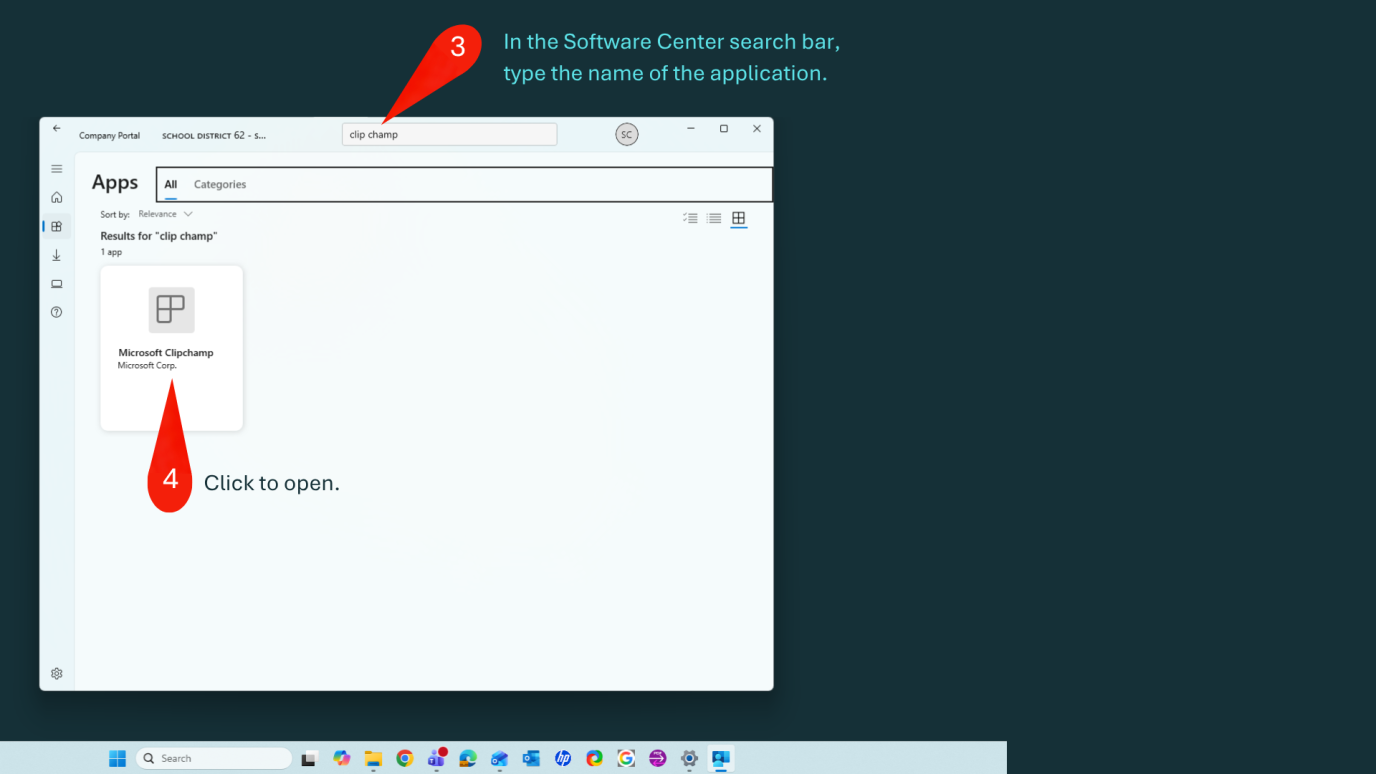 Step 3. Type the application name into the search bar Step 4. Click to open |
Image 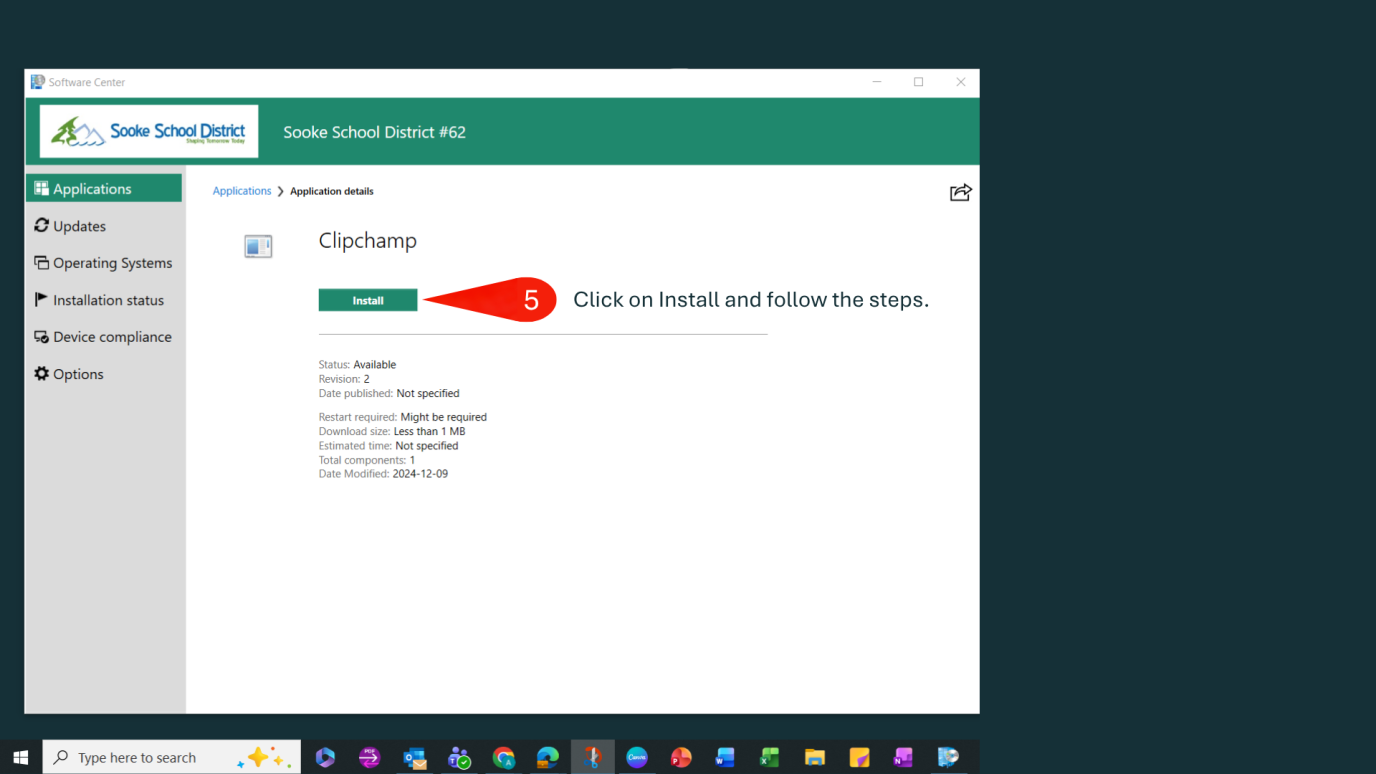 Step 5. Click Install and follow install instructions | Image 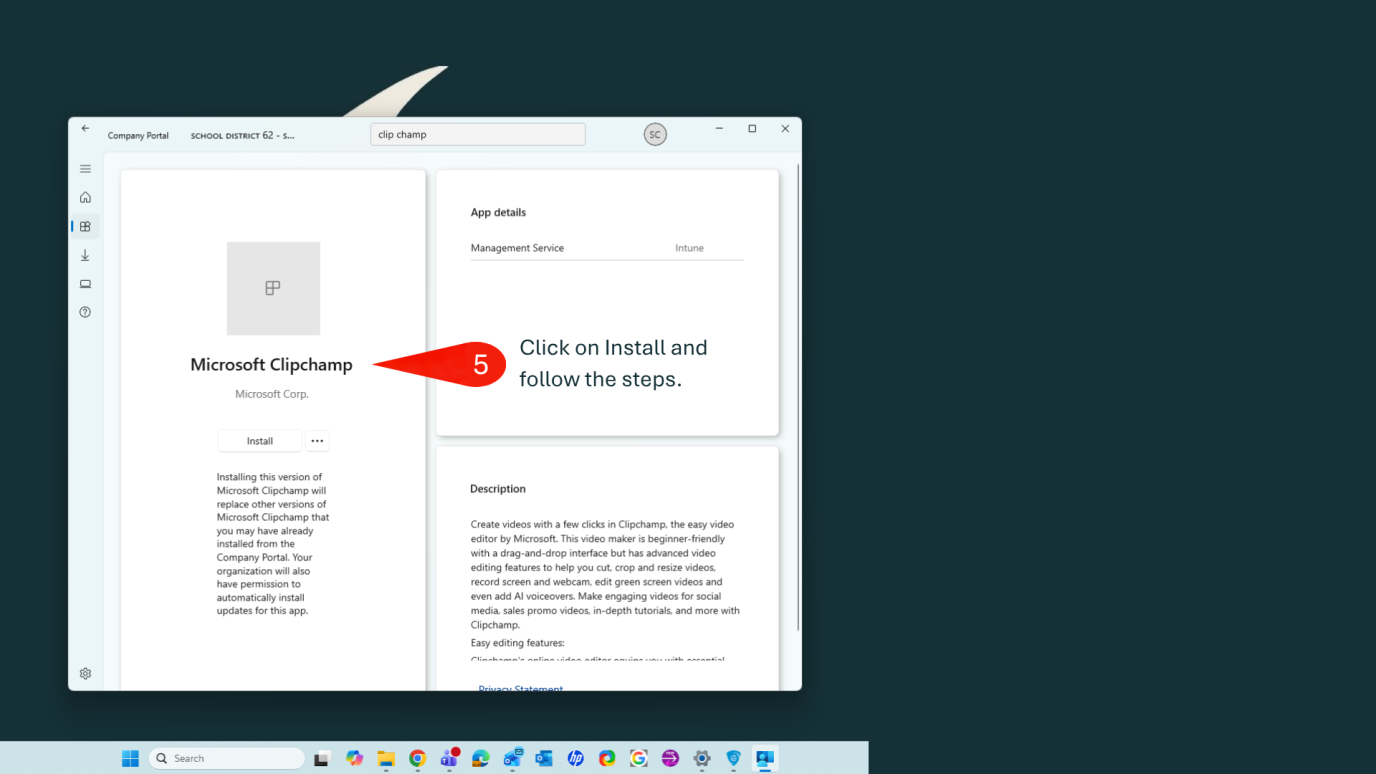 Step 5. Click Install and follow install instructions |